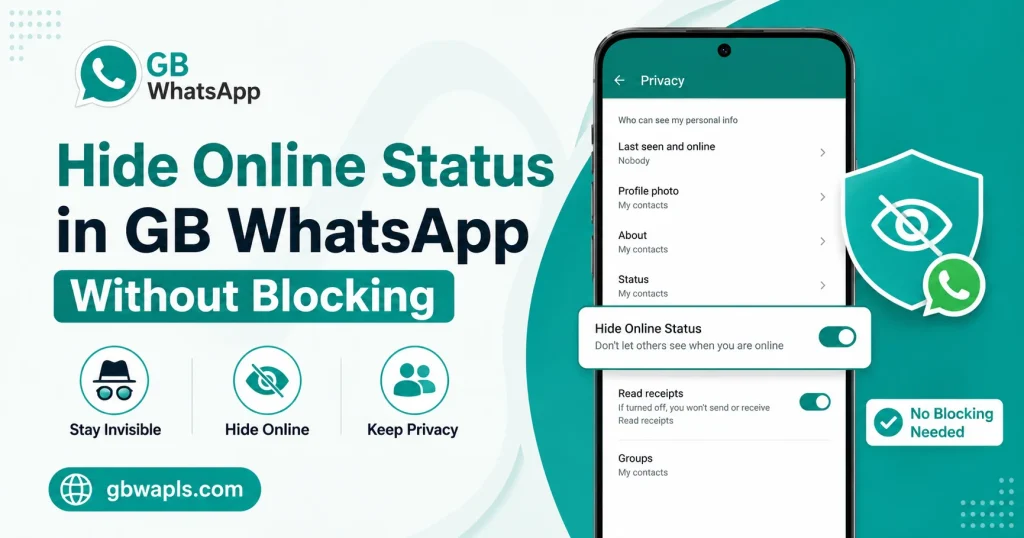
How to Hide Online Status in GB WhatsApp Without Blocking
Introduction
Hiding online status in GB WhatsApp without blocking is one of the most common privacy requests. In 2026, many users want to read messages and chat without letting others know they are active. Blocking is too aggressive because it cuts off communication, and disabling internet is inconvenient. GB WhatsApp offers smarter solutions that let you stay invisible while keeping your chats open.
This guide explains the exact settings to use, how to combine privacy options, and how to maintain a normal conversation flow without revealing your online status.
Why Hide Online Status
There are many real reasons to hide your online status:
Methods to Hide Online Status in GB WhatsApp
GB WhatsApp offers four main methods.
| Method | Effect | Best For |
|---|---|---|
| Hide Online Status Setting | Disable online visibility globally | Full privacy |
| Ghost Mode | Hide all activity indicators | Maximum stealth |
| Airplane Mode Trick | Read messages offline temporarily | Quick check |
| Custom Contact Privacy | Hide from specific contacts only | Targeted invisibility |
Method 1: Use the Built-in Hide Online Status Setting
Step 1: Open GB WhatsApp
Launch GB WhatsApp on your Android device.
Step 2: Go to GB Settings
Tap the three-dot menu and choose GB Settings.
Step 3: Open Privacy and Security
In GB Settings, tap Privacy and Security to access all privacy options.
Step 4: Find Hide Online Status
Scroll to the Online Status section. You will see options like Everyone, Nobody, and Same as last seen.
Step 5: Select Nobody
Choose Nobody to hide your online status from everyone.
Step 6: Save and Restart
Save the setting and restart GB WhatsApp. The change takes effect immediately.
Method 2: Enable Ghost Mode for Maximum Privacy
Ghost Mode hides multiple indicators at once. Open GB Settings, go to Privacy and Security, and toggle Ghost Mode on. It hides online status, blue ticks, typing indicator, recording indicator, second ticks, and last seen updates.
Method 3: Use Custom Contact Privacy
If you only want to hide online status from certain people, open GB Settings, go to Privacy and Security, tap Who Can See My Online Status, select My Contacts Except, choose the contacts to exclude, and save. These contacts will see “Online” as unavailable, while others see your status normally.
Method 4: Airplane Mode Trick
For a one-time invisible read, turn on airplane mode, open GB WhatsApp and read the message, close GB WhatsApp completely, then turn off airplane mode. The sender will not see you online because the app never synced the status while the network was off.
Comparison of All Methods
| Method | Permanent | Per-Contact | Easy Setup | Best For |
|---|---|---|---|---|
| Hide Online Status Setting | Yes | No | Yes | Full invisibility |
| Ghost Mode | Yes | No | Yes | Total privacy |
| Custom Privacy | Yes | Yes | Medium | Targeted invisibility |
| Airplane Mode | No | Yes | Manual | Quick checks |
What Happens When You Hide Online Status
When you hide your online status, several things happen. Contacts see “Online” timestamp as unavailable, you can still send and receive messages, voice and video calls still work normally, and you still see others’ online status unless you also disable that.
Why Not Just Block the Contact
Blocking is not ideal because it cuts off all communication, the contact knows they are blocked, you cannot see their messages or status, and it creates awkward social situations.
Hiding online status is a softer, smarter approach.
Combining Hide Online Status with Other Features
To get the best privacy experience, combine these settings.
| Feature | What It Does |
|---|---|
| Hide Online Status | Stops showing when you are active |
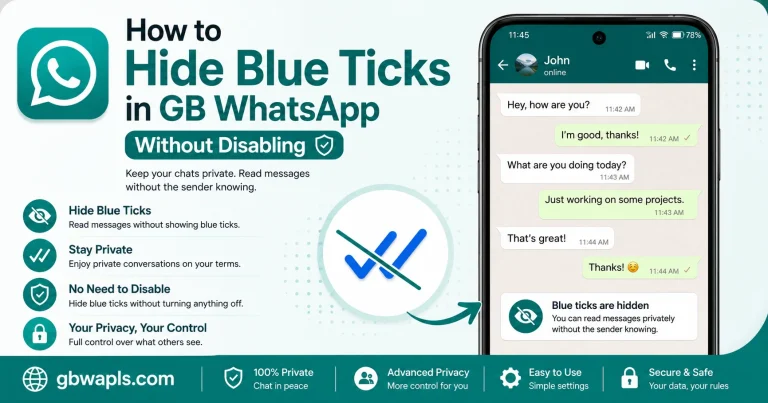
| Hide Blue Ticks | Stops showing when you read messages |
| Freeze Last Seen | Sets a fixed last seen time |
| Anti-Revoke | Keeps deleted messages |
| Hide Status View | Lets you view status anonymously |
Common Scenarios for Hiding Online Status
Hiding online status is useful in many real-life situations:
Per-Group Online Status Control
GB WhatsApp lets you hide online status specifically in groups. Open GB Settings, go to Privacy and Security, find Group Privacy Options, and enable Hide Online Status in Groups.
Auto-Activate Online Status Hider
In 2026, GB WhatsApp supports scheduled privacy. Open GB Settings, go to Privacy and Security, tap Schedule Privacy, set start and end times, choose Hide Online Status, and save. The feature will turn on and off automatically.
Effect on Linked Devices
| Device | Effect of Online Status Hider |
|---|---|
| GB WhatsApp on Android | Hide status from main app |
| GB WhatsApp Web | Status hidden in browser too |
| Linked Companion Apps | Status hidden across all linked devices |
| Notification Mirroring | No change to notification delivery |
Troubleshooting Online Status Issues
| Problem | Cause | Solution |
|---|---|---|
| Contacts still see online | Feature not saved | Re-enable and restart app |
| Online status flickers | Network sync issue | Toggle airplane mode briefly |
| Cannot enable in groups | Group option disabled | Enable group privacy settings |
| App crashes when toggling | Outdated version | Update GB WhatsApp to latest APK |
| Settings not applying | Cache issue | Clear cache and retry |
Best Practices for Online Status Privacy
To get the most out of online status privacy, use per-contact hiding for targeted invisibility, schedule privacy during work hours, combine with Ghost Mode for total stealth, use chat lock for added security, and keep GB WhatsApp updated to avoid bugs.
Ethical Use of Online Status Hider
Use this feature responsibly:
Frequently Asked Questions
Final Verdict
Hiding your online status in GB WhatsApp without blocking anyone is a simple way to maintain more privacy while staying connected with your contacts. Once the privacy settings are adjusted, you can use chats and messages without showing everyone that you are currently online. This makes GB WhatsApp a convenient option for users who want more control over their online status and privacy.