How to Download & Apply GB WhatsApp Themes in 2026
Introduction
Downloading and applying GB WhatsApp themes is one of the most enjoyable features of the mod. In 2026, GB WhatsApp offers thousands of free themes that completely change the look of your chat app. Whether you prefer dark mode, minimal design, or colorful customization, this guide shows you how to find, download, and apply themes safely.
With the right theme, you can transform GB WhatsApp into a truly personal messaging app that matches your style.
Why Use GB WhatsApp Themes
Themes let you personalize every visual aspect of GB WhatsApp. Unlike official WhatsApp, which offers only light and dark mode, GB WhatsApp themes change:
Themes are a major reason users prefer GB WhatsApp over the official app.
Types of GB WhatsApp Themes
| Theme Type | Description | Best For |
|---|---|---|
| Built-in Themes | Pre-installed in GB WhatsApp | Quick customization |
| Online Theme Store | Themes inside the app | One-tap download |
| XML Theme Files | External theme files | Advanced customization |
| Custom Themes | Made by users | Unique personal style |
| Dark Themes | Black and dark gray | Battery saving on AMOLED |
| Minimal Themes | Simple and clean | Distraction-free chats |
| Gradient Themes | Colorful gradients | Vibrant appearance |
How to Apply a Built-in Theme
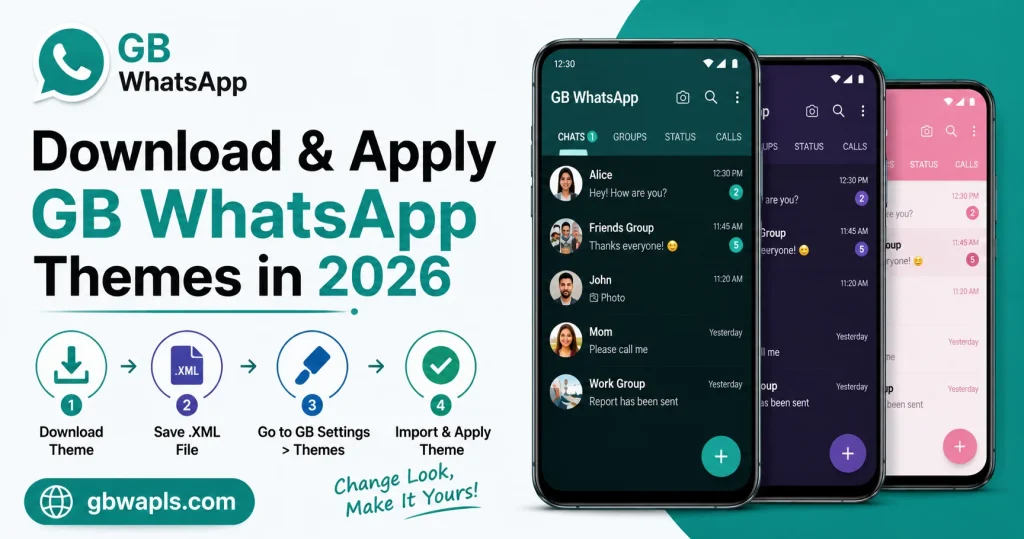
GB WhatsApp comes with several pre-installed themes. Open GB WhatsApp, tap the three-dot menu, go to GB Settings, select Themes, browse the built-in themes list, tap a theme to preview, and tap Apply to activate. The change takes effect immediately.
How to Access the Online Theme Store
Open GB Settings, tap Themes, select Theme Store or Download Themes, browse by category such as Popular, New, or Trending, tap Download on any theme you like, and the theme saves to your local theme library. Apply it from the Themes menu.
How to Download Themes from External Sources
Many community-made themes are available online. To use them, find a trusted source by searching for GB WhatsApp themes on official GB WhatsApp Telegram channels, Reddit communities like r/GBWhatsApp, XDA developer forums, and trusted theme blogs with positive reviews. Avoid random download sites that bundle malware.
Step 2: Download the XML Theme File
GB WhatsApp themes usually come in XML format. The file size is typically between 1 and 5 MB.
Step 3: Move the File to the GBThemes Folder
Connect your phone to a computer, open the internal storage, navigate to GBWhatsApp folder, create the GBThemes folder if it does not exist, and move the XML file into the folder. Some devices also let you move files using a file manager.
Step 4: Apply the Theme
Open GB WhatsApp, go to GB Settings, then Themes, tap the refresh icon to load external themes, select the new theme from the list, and tap Apply.
How to Apply Custom Fonts
In addition to full themes, GB WhatsApp lets you change fonts. Open GB Settings, go to Universal Settings, tap Font Style, browse the font list, tap a font to preview, and apply the font you like. You can also import custom TTF font files from your storage.
How to Customize Theme Elements Manually
If you do not want to use a full theme, you can customize individual elements.
| Element | Where to Customize |
|---|---|
| Chat Background | Per-chat wallpaper settings |
| Bubble Style | Universal Settings, then Chat Bubble |
| Tick Style | Universal Settings, then Tick Style |
| Header Color | Themes, then Header Customization |
| Icon Pack | Themes, then Icon Pack |
| Notification Color | Notification Settings |
Popular Theme Styles in 2026
Popular theme styles include:
How to Create Your Own Theme
GB WhatsApp includes a theme editor for advanced users. Open GB Settings, go to Themes, tap Create Theme or Theme Editor, customize colors for each element, adjust bubble styles, tick styles, and fonts, save your theme with a custom name, and apply or share with friends.
How to Share Themes
Open GB Settings, then Themes, tap the theme you want to share, select Export or Share, choose a sharing method such as Telegram, email, or Bluetooth, and send the XML file to friends.
Common Theme Issues and Fixes
| Problem | Cause | Solution |
|---|---|---|
| Theme not appearing in list | Wrong folder | Move XML to GBThemes folder |
| Theme looks broken | Incompatible version | Download theme for your GB WhatsApp version |
| Cannot apply theme | Storage permission denied | Grant storage access in Android settings |
| Theme resets after restart | Cache issue | Clear cache and reapply |
| Black screen on apply | Corrupted XML file | Re-download from trusted source |
Theme Backup and Restore
To save your custom theme settings, open GB Settings, go to Themes, tap Backup Theme, and save the backup to local storage or cloud. To restore, open Themes, tap Restore, select the backup file, and apply the theme.
How to Reset to Default Theme
If you want to return to the original GB WhatsApp look, open GB Settings, tap Themes, select Default Theme or Reset, confirm the action, and restart GB WhatsApp.
Difference Between Theme and Skin
| Aspect | Theme | Skin |
|---|---|---|
| Format | XML file | Compressed package |
| Installation | Manual via GBThemes folder | Through theme manager |
| Customization Level | Full | Full |
| Community Availability | High | Limited |
Themes are the most common customization format in GB WhatsApp.
Theme Safety Tips
Frequently Asked Questions
Final Verdict
Downloading and applying GB WhatsApp themes in 2026 is a fun way to personalize your messaging experience. Use the built-in store for quick changes or download XML themes for advanced customization. Always choose trusted sources and enjoy a fresh new look for your chats.