How to Hide Blue Ticks in GB WhatsApp Without Disabling
Introduction
Hiding blue ticks in GB WhatsApp without disabling read receipts is a common need. Blue ticks tell senders that you have read their message, and sometimes you want to read at your own pace without letting them know. In 2026, GB WhatsApp offers multiple ways to hide blue ticks selectively while still using the read receipt feature when you want.
This guide explains the exact settings to use, the difference between hiding and disabling, and how to control your read receipts per chat.
What Are Blue Ticks
Blue ticks are the two blue check marks that appear under a message when the recipient reads it. They are part of WhatsApp’s read receipt system and indicate:
Hiding blue ticks lets you read messages without the sender being notified.
Difference Between Hiding and Disabling Blue Ticks
| Action | Effect on Senders | Effect on You |
|---|---|---|
| Disable Blue Ticks | They cannot see when you read | You also cannot see when they read |
| Hide Blue Ticks (GB Mod) | Senders do not see your blue ticks | You still see theirs |
| Per-Chat Hide | Hide only for selected contacts | You see their ticks normally |
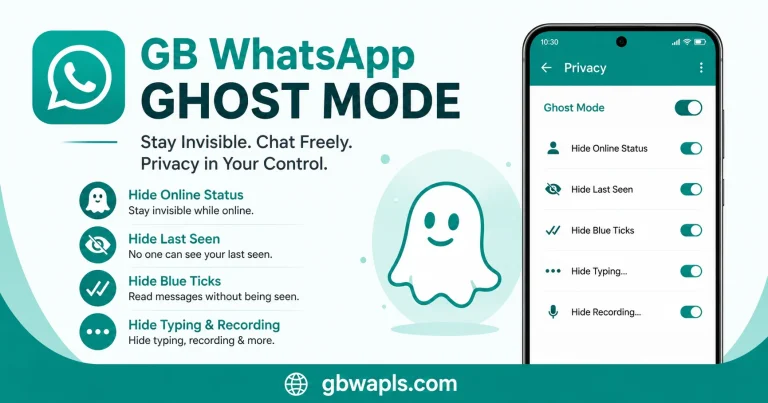
GB WhatsApp lets you hide your blue ticks while still seeing others’ blue ticks, which is the most useful option for most users.
How to Hide Blue Ticks in GB WhatsApp
Step 1: Open GB WhatsApp
Launch the GB WhatsApp app on your Android device.
Step 2: Tap the Three-Dot Menu
In the top right corner, tap the three-dot menu to open the options list.
Step 3: Go to GB Settings
Select GB Settings from the menu to open the modded settings panel.
Step 4: Open Privacy and Security
In GB Settings, tap Privacy and Security to access the privacy controls.
Step 5: Locate Blue Ticks Option
Scroll down until you find the Blue Ticks option. It may be listed as Hide Blue Ticks, Disable Read Receipts, or similar.
Step 6: Enable the Feature
Toggle the switch to enable hiding blue ticks. Some versions offer three choices: Everyone, Contacts only, and Nobody (which means you see ticks but they do not see yours). Choose Nobody if you want full control.
Step 7: Restart GB WhatsApp
Close and reopen the app to apply the changes. After restart, your blue ticks will be hidden from senders.
How to Hide Blue Ticks for Specific Contacts
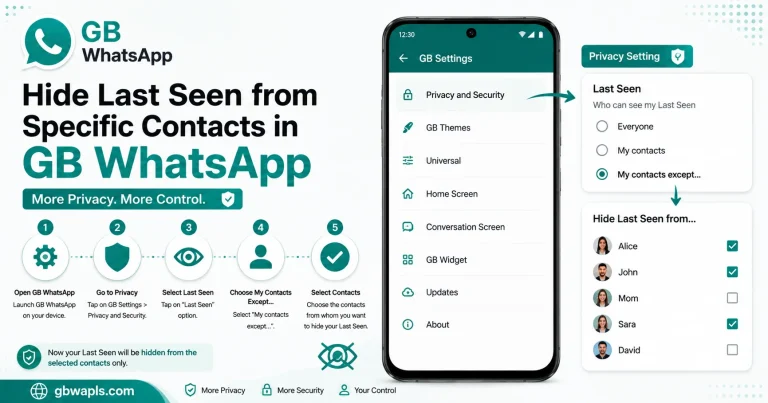
If you only want to hide blue ticks from certain contacts, open the chat with the specific contact, tap the contact name at the top, select Custom Privacy, enable Hide Blue Ticks for this contact, and save and exit. This works without affecting other chats.
Why Hide Blue Ticks Without Disabling
Hiding without disabling gives you the best of both worlds. You can read messages privately without pressure, you still know when others have read your messages, you avoid awkward situations where friends ask why you have not replied, you stay in control of your reply timing, and it is useful for both personal and professional chats.
Comparison with Other Methods
| Method | What It Does | Limitation |
|---|---|---|
| Disable Read Receipts in Official WhatsApp | Hides your blue ticks completely | You also lose theirs |
| Airplane Mode Trick | Read messages offline | Must close app before opening |
| Notification Preview | Read first line of message | Only short preview |
| GB WhatsApp Blue Tick Hider | Hides your ticks, keeps theirs | Mod risk |
| WhatsApp Web Pop-out | Read in floating window | Detected on phone too |
GB WhatsApp’s built-in feature is the most reliable and clean method.
How Airplane Mode Trick Works
If you want to read a specific message without anyone knowing, turn on airplane mode, open GB WhatsApp and read the message, close GB WhatsApp completely, then turn off airplane mode. The message will not show blue ticks because the app did not sync back to the server. This trick works but is time-consuming. The blue tick hider is faster.
Common Scenarios for Hiding Blue Ticks
Hiding blue ticks is useful in many real-life situations:
How to Hide Blue Ticks in Group Chats
GB WhatsApp allows you to hide blue ticks specifically in groups. Open GB Settings, go to Privacy and Security, find Group Blue Ticks option, and enable it to hide your read receipts in groups only. This is useful because groups often have many members, and blue ticks can pressure you to reply quickly.
How to Show Blue Ticks Again
If you decide to show blue ticks again, open GB Settings, go to Privacy and Security, disable the Blue Ticks Hider, and restart GB WhatsApp. You can switch between hidden and visible ticks anytime.
Effect of Blue Ticks Hider on Other Features
| Feature | Still Works? | Notes |
|---|---|---|
| Voice and Video Calls | Yes | No relation to blue ticks |
| Status View | Yes | Use status hider separately |
| Group Messaging | Yes | Use group blue tick hider |
| Message Replies | Yes | Replies still appear |
| Reactions | Yes | Reactions are separate from read receipts |
Best Practices for Using Blue Tick Hider
To get the most out of the blue tick hider, follow these best practices:
Ethical Considerations
Hiding blue ticks is a personal choice, but consider the following: be honest with close contacts if they ask, use the feature for personal boundaries not to deceive, avoid professional misuse in business chats, respect expectations set by group rules, and do not use the feature to ignore urgent messages intentionally.
Difference Between Blue Ticks and Read Receipts
Some users confuse the two terms. In WhatsApp, blue ticks refer to message read receipts and read receipts are the system that generates blue ticks. GB WhatsApp’s blue tick hider works on the read receipt system, which is why it is also called Disable Read Receipts.
Frequently Asked Questions
Final Verdict
Hiding blue ticks in GB WhatsApp without disabling read receipts in 2026 is simple with the built-in privacy setting. Use it per chat or globally, and enjoy reading messages privately while still knowing when others read yours.