How to Read Deleted Messages in GB WhatsApp in 2026
Introduction
Reading deleted messages in GB WhatsApp is one of the most desired features among mod users. In 2026, the official WhatsApp lets senders delete messages for everyone, but GB WhatsApp counters this with anti-revoke and message log features. This guide shows you exactly how to enable these features, recover deleted texts, and never miss important information again.
Whether the sender used Delete for Everyone or simply unsent a message, GB WhatsApp can capture and store it before it disappears from your chat.
Why People Want to Read Deleted Messages
There are many real reasons to recover deleted messages, including recovering accidentally deleted important information, reading business messages that were sent by mistake, catching dishonest behavior in conversations, saving important addresses, numbers, or instructions, retrieving deleted media files, and monitoring group chat activity in communities.
How the Anti-Revoke Feature Works
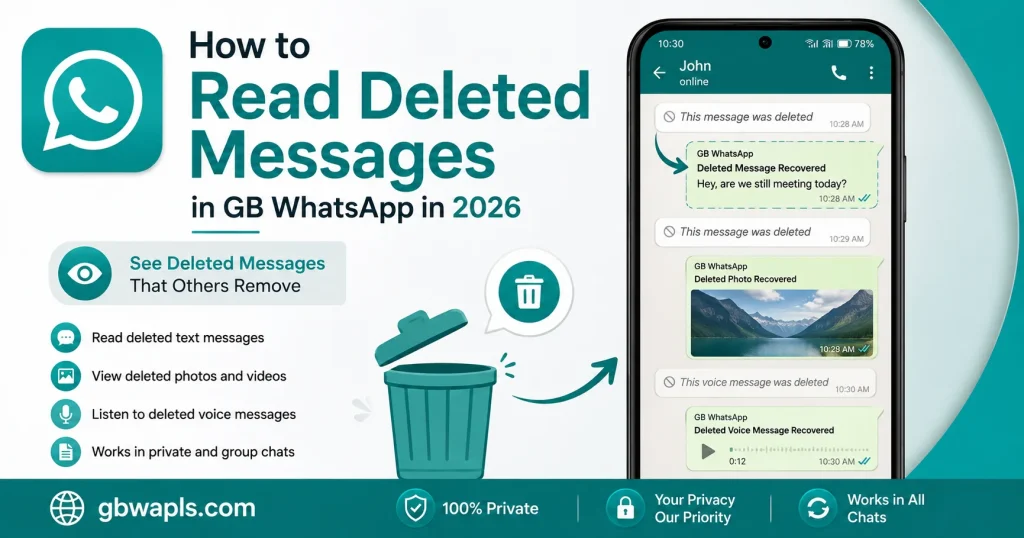
GB WhatsApp includes an anti-revoke module that runs in the background. When a sender deletes a message, the mod intercepts the delete command and keeps the original message visible in your chat. Instead of the deletion notice, you see the actual content of the message.
| Feature | Official WhatsApp | GB WhatsApp |
|---|---|---|
| Delete for Everyone | Yes | Yes, but you still see the original |
| Recall Media | Yes | Original media remains in your gallery |
| Delete Status Update | Yes | Anti-revoke keeps it |
| Delete Voice Note | Yes | Voice note still playable |
| Delete Document | Yes | Document still downloadable |
Step-by-Step Guide to Enable Anti-Revoke
Step 1: Open GB WhatsApp
Launch the GB WhatsApp app on your Android phone. Make sure you have the latest version installed.
Step 2: Open GB Settings
Tap the three-dot menu in the top right corner and select GB Settings from the dropdown.
Step 3: Go to Privacy and Security
In GB Settings, tap Privacy and Security to open the privacy options.
Step 4: Enable Anti-Revoke Messages
Scroll down to find the Anti-Revoke Messages toggle. Switch it on. The app may ask you to restart for changes to take effect.
Step 5: Restart GB WhatsApp
Close the app completely and reopen it. Your anti-revoke is now active and all incoming messages will be protected from deletion.
Step 6: Test the Feature
Ask a friend to send you a message and then delete it using Delete for Everyone. The message should remain visible in your chat.
Where Deleted Messages Are Stored
GB WhatsApp stores deleted messages in a local database. You can access them in two ways.
Method 1: Inside the Chat
Deleted messages simply remain in their original location inside the chat. The Delete for Everyone action becomes ineffective.
Method 2: In the Message Log
GB WhatsApp includes a separate message log that records every text, even after deletion. To access it, open GB Settings, tap on Privacy and Security, select Message Log, and browse the full list of received messages including deleted ones.
Reading Deleted Media Files
Anti-revoke works for media too. When a sender deletes a photo, video, or voice note, GB WhatsApp keeps a copy in your phone storage. You can find them in the GBWhatsApp folder inside your phone storage, the Media subfolder organized by type, and a dedicated Anti-Revoke folder for deleted items.
Recovering Deleted Messages Without Anti-Revoke
If you forgot to enable anti-revoke before the message was deleted, you can still try these methods. Check Google Drive backup for older versions of the message, restore a local backup from a few hours earlier, use notification history on Android to read the message preview, ask the sender to resend the message, or check linked devices for the original message.
Comparison: Anti-Revoke vs Notification History
| Method | Pros | Cons |
|---|---|---|
| Anti-Revoke | Keeps full message in chat | Must enable before deletion |
| Notification History | Works even after deletion | Only shows message preview |
| Google Drive Backup | Recovers older messages | Requires previous backup |
| Local Backup | Full chat restoration | Overwrites newer messages |
| Linked Devices | May still have message | Requires active web session |
Tips for Using Anti-Revoke Effectively
To use anti-revoke effectively, enable it immediately after installing GB WhatsApp, do not disable the feature even temporarily, check the message log weekly for important deleted content, use it ethically and respect others’ privacy, and pair anti-revoke with chat lock to keep your log secure.
Limitations of Anti-Revoke
Anti-revoke has a few limitations:
- Cannot recover messages deleted before you installed the feature
- May not work if the sender used a different WhatsApp mod
- Group messages deleted by an admin may still disappear
- Anti-revoke cannot restore messages deleted from official WhatsApp backend
- Some media files may not save if storage permission is denied
How to Disable Anti-Revoke
If you no longer need the feature, open GB Settings, go to Privacy and Security, toggle Anti-Revoke Messages off, and restart GB WhatsApp. Disabling the feature will not delete your existing message log, but new deletions will work normally.
Ethical Use of Anti-Revoke
While the feature is powerful, use it responsibly:
- Avoid using it to spy on private conversations
- Do not share deleted messages publicly without consent
- Use it for personal reference and important information
- Respect the privacy expectations of your contacts
- Disable the feature if a friend asks you to respect their deletions
Troubleshooting Anti-Revoke Issues
| Problem | Cause | Solution |
|---|---|---|
| Deleted message still disappears | Feature disabled | Enable anti-revoke in GB Settings |
| Only some messages are kept | Selective anti-revoke | Update GB WhatsApp to latest version |
| Media not saved | Storage permission missing | Grant storage access in Android settings |
| Message log empty | Log not yet populated | Use the app for a few days and check again |
| App crashes when enabling | Outdated version | Download the newest GB WhatsApp APK |
Best Practices for Power Users
Power users should follow these best practices to get the most out of anti-revoke:
- Combine anti-revoke with chat backup for full data safety
- Export your message log monthly for archival
- Use a separate folder for important deleted messages
- Avoid sharing screenshots of deleted messages in public groups
- Keep GB WhatsApp updated to avoid anti-revoke bugs
Frequently Asked Questions
Final Verdict
Reading deleted messages in GB WhatsApp in 2026 is easy with the anti-revoke feature. Enable it from GB Settings, restart the app, and you will never lose important information again. Use the feature responsibly and pair it with regular backups for the best experience.