How to Lock GB WhatsApp Chats with Password or Fingerprint
Introduction
Locking GB WhatsApp chats with a password or fingerprint is one of the best ways to protect your private conversations. In 2026, smartphone security matters more than ever, and GB WhatsApp offers multiple ways to secure individual chats or the entire app. This guide explains how to enable chat lock, use biometrics, and keep your data safe from prying eyes.
Whether you share your phone with family members or just want extra privacy, GB WhatsApp’s lock features give you the protection you need.
Why Lock GB WhatsApp Chats
Locking chats protects sensitive information such as:
Types of Lock Available in GB WhatsApp
GB WhatsApp offers three main lock methods.
| Lock Type | Security Level | Best For |
|---|---|---|
| PIN Code | High | Users who prefer numeric passwords |
| Pattern Lock | Medium | Users comfortable with Android pattern unlock |
| Fingerprint | Very High | Quick and secure access on supported devices |
| Face Unlock | High | Devices with reliable face recognition |
| Combined Lock | Maximum | Using two methods together |
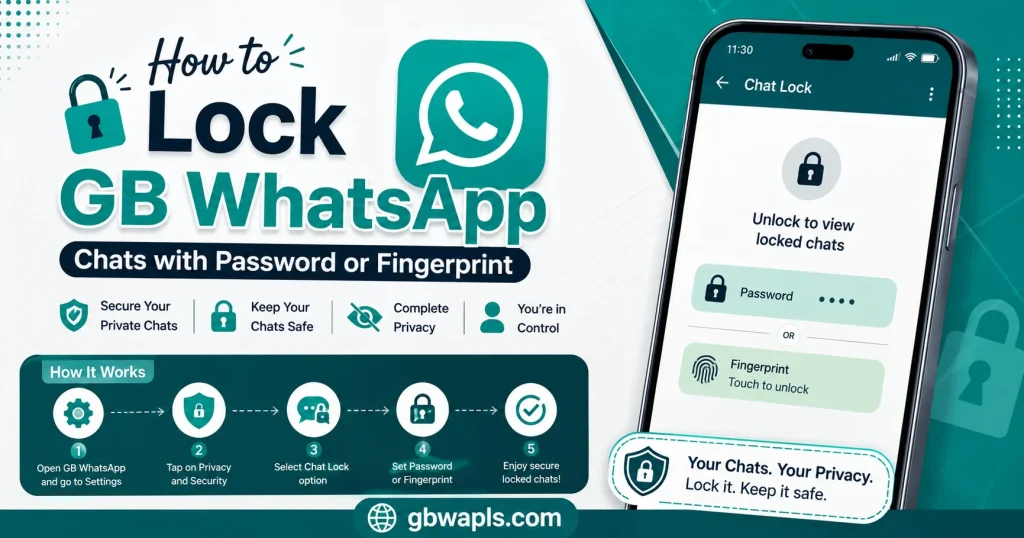
How to Lock the Entire GB WhatsApp App
Step 1: Open GB WhatsApp
Launch the GB WhatsApp app on your Android device.
Step 2: Open GB Settings
Tap the three-dot menu and select GB Settings from the dropdown.
Step 3: Go to Privacy and Security
In GB Settings, tap Privacy and Security to find the lock options.
Step 4: Enable App Lock
Scroll down to find Lock Settings or App Lock. Toggle it on.
Step 5: Choose Your Lock Method
Select PIN, Pattern, or Fingerprint based on your preference. The app will guide you through setup.
Step 6: Set Auto-Lock Timer
Choose how long the app stays unlocked after you close it. Options include Immediately, After 1 minute, After 5 minutes, After 15 minutes, and After 30 minutes.
Step 7: Save and Test
Save the settings and lock the app. Reopen GB WhatsApp to test the new lock.
How to Lock Individual Chats in GB WhatsApp
GB WhatsApp allows you to lock specific chats without locking the whole app. There are three common methods: long press on a chat to access the lock icon, use the chat info menu to enable Lock Chat, or open GB Settings and tap Lock Specific Chats. After choosing your method, confirm the lock and set a password or fingerprint. Make sure your device has the required hardware support and the latest GB WhatsApp version installed.
How to Set Up Fingerprint Lock
Fingerprint is the fastest and most secure way to lock GB WhatsApp. Open GB Settings, go to Lock Settings, select Fingerprint, confirm your fingerprint on the sensor, enable Fingerprint Unlock, and save settings. Make sure your device has fingerprint hardware and at least one registered fingerprint in Android settings.
How to Use Pattern Lock
Pattern lock uses a swipe pattern like Android unlock. Open GB Settings, go to Lock Settings, select Pattern Lock, draw your pattern twice to confirm, and save settings. Pattern lock is less secure than PIN or fingerprint but easier to use.
How to Use PIN Lock
PIN lock uses a four to six digit number. Open GB Settings, go to Lock Settings, select PIN Lock, enter your PIN twice, and save settings. PIN lock is recommended for users who want strong security without biometrics.
Lock Settings Comparison
| Setting | Description | Recommendation |
|---|---|---|
| Auto-Lock Timer | How long app stays unlocked | Set to 1 minute for best balance |
| Lock on Screen Off | Lock immediately when screen turns off | Enable for maximum security |
| Hide Lock Content | Hide chat content in notifications | Enable for private chats |
| Show Lock Icon | Show lock icon in status bar | Optional |
| Backup Lock | Require lock to access backups | Enable for sensitive data |
How to Unlock Locked Chats
To unlock a locked chat, open GB WhatsApp, go to the locked chat section at the top of the chat list, tap the chat, use your fingerprint, PIN, or pattern to unlock, and the chat remains unlocked for the auto-lock duration.
How to Remove Chat Lock
If you no longer want a chat locked, open the locked chat, tap the contact name, scroll to Lock Chat, toggle it off, and confirm the action. You can also remove multiple locked chats at once through GB Settings.
How to Recover If You Forgot the Lock
Forgetting the lock is uncommon but possible. Open GB WhatsApp, tap Forgot Password on the lock screen, enter your backup PIN if you set one, or use fingerprint if previously registered, or uninstall and reinstall the app and restore from backup. Always set a backup PIN to avoid losing access.
Common Lock Issues and Fixes
| Problem | Cause | Solution |
|---|---|---|
| Fingerprint not working | Hardware or permission issue | Re-register fingerprint in Android settings |
| Pattern not recognized | Wrong pattern | Use backup PIN to reset |
| App not locking | Auto-lock timer too long | Set shorter timer in GB Settings |
| Lock icon missing | Outdated version | Update GB WhatsApp to latest APK |
| Lock bypassed after reboot | System bug | Re-enable lock after device restart |
Best Practices for Chat Lock Security
To get the most out of chat lock security, follow these tips:
- Use fingerprint for quick daily access
- Set a strong PIN if biometrics are unavailable
- Enable auto-lock to 1 minute for best balance
- Hide chat content in notifications
- Back up chats to a secure location
- Update GB WhatsApp regularly for security patches
- Do not share your PIN with anyone
Difference Between App Lock and Chat Lock
| Feature | App Lock | Chat Lock |
|---|---|---|
| Locks entire app | Yes | No |
| Locks individual chats | No | Yes |
| Requires authentication | Yes | Yes |
| Auto-lock timer | Yes | Yes |
| Hidden chat folder | No | Yes |
| Best use | General privacy | Targeted privacy |
GB WhatsApp supports both, so use them together for layered security.
Hidden Chat Folder in GB WhatsApp
When you lock a chat, GB WhatsApp moves it to a hidden folder. To access it:
- Scroll to the top of the chat list
- Pull down to reveal the hidden chats section
- Use your lock method to open the folder
- All locked chats appear inside
This is useful for keeping certain conversations completely invisible to anyone who opens your phone.
Frequently Asked Questions
Final Verdict
Locking GB WhatsApp chats with a password or fingerprint in 2026 is essential for privacy. Use the app-wide lock for general security and per-chat lock for sensitive conversations. Combine with fingerprint and a short auto-lock timer for the best protection.