How to Hide Last Seen from Specific Contacts in GB WhatsApp
Introduction
Hiding last seen from specific contacts in GB WhatsApp is a powerful privacy feature that official WhatsApp does not fully offer. In 2026, GB WhatsApp lets you control exactly who can see your last seen timestamp, while others still see it normally. This guide explains how to enable per-contact last seen hiding, freeze your last seen, and protect your privacy from selected people.
Whether you want to avoid a particular person knowing when you were last online or you want to manage your availability, this feature gives you total control.
What is Last Seen in WhatsApp
Last seen is the timestamp that shows when you last opened WhatsApp. It appears under your name in individual chats and sometimes in group chats. The official app offers only three options: Everyone, My contacts, and Nobody. GB WhatsApp expands this with custom controls, per-contact exceptions, and last seen freezing.
Why Hide Last Seen from Specific Contacts
There are many real reasons to use this feature, including avoiding being monitored by an ex-partner, staying private from a colleague or boss, managing availability expectations with certain people, maintaining personal boundaries in social circles, reducing reply pressure from specific contacts, and staying invisible to people you no longer want to interact with.
Difference Between Hiding and Freezing Last Seen
| Option | What It Does | Best For |
|---|---|---|
| Hide Last Seen | Selected contacts cannot see your last seen | Total invisibility from chosen people |
| Freeze Last Seen | Your last seen stays at a fixed time | Making it look like you have not been online |
| Custom Time Freeze | Set a fake last seen time | More control over what others see |
GB WhatsApp offers all three options, and you can use them together for maximum privacy.
Step-by-Step Guide to Hide Last Seen from Specific Contacts
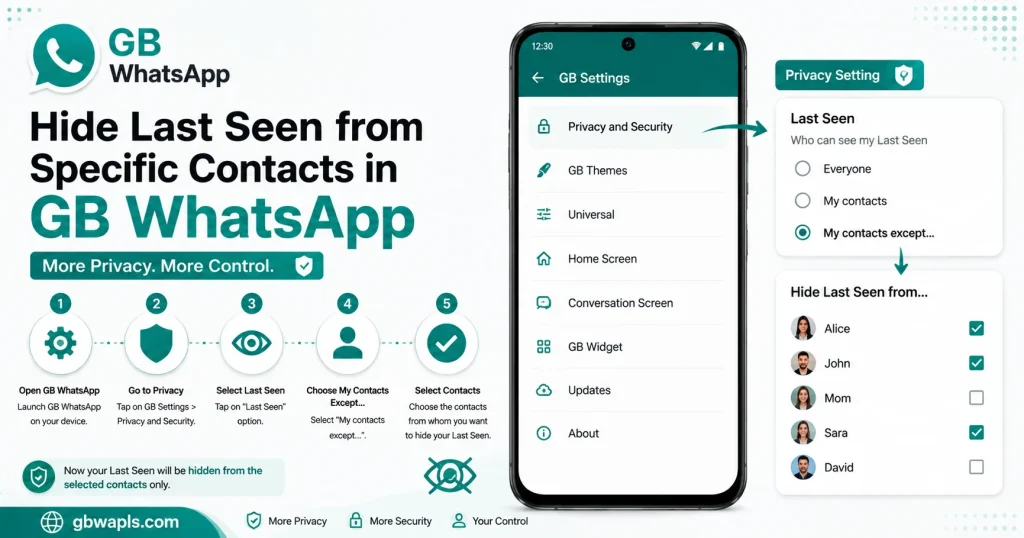
Step 1: Open GB WhatsApp
Launch the GB WhatsApp app on your Android device. Make sure you are using the latest version for full feature support.
Step 2: Access GB Settings
Tap the three-dot menu in the top right corner and select GB Settings.
Step 3: Open Privacy and Security
In GB Settings, navigate to Privacy and Security to find last seen options.
Step 4: Find Last Seen Options
Scroll to find the Last Seen section. You will see options like Who can see my last seen, Hide last seen for specific contacts, and Freeze last seen.
Step 5: Select Hide from Specific Contacts
Choose the option Hide Last Seen for Specific Contacts or My Contacts Except. A contact list will appear.
Step 6: Add Contacts You Want to Exclude
Select the contacts from whom you want to hide your last seen. Tap Save to apply the settings.
Step 7: Restart GB WhatsApp
Close the app completely and reopen it. The new privacy settings are now active.
How to Freeze Last Seen
Freezing last seen makes your timestamp stay at a fixed time, so it looks like you have not been online since that moment. Open GB Settings, go to Privacy and Security, tap Freeze Last Seen, choose a fixed time or pick a recent timestamp, and save and exit. Now your last seen will remain at that exact time until you disable the feature.
How to Set a Custom Fake Last Seen
In 2026, GB WhatsApp allows you to manually set a custom last seen time. Open GB Settings, go to Privacy and Security, select Set Custom Last Seen, choose any date and time from the picker, and tap Save. Your contacts will see this fake last seen until you change it again.
Comparison of Last Seen Options
| Option | Visibility | Control Level | Use Case |
|---|---|---|---|
| Everyone | All contacts see it | Low | Default behavior |
| My Contacts | All contacts except blocked see it | Medium | General privacy |
| Nobody | No one sees it | High | Full invisibility |
| Hide from Specific | Selected contacts do not see it | Very high | Targeted privacy |
| Freeze Last Seen | Last seen stays at a fixed time | Very high | Avoid real-time tracking |
| Custom Last Seen | You pick a fake time | Maximum | Total control |
What Happens When You Hide Last Seen from a Contact
When you enable this feature, the following changes occur:
Last Seen Hider in Group Chats
GB WhatsApp also lets you hide last seen in group chats. Open GB Settings, go to Privacy and Security, enable Hide Last Seen in Groups, and save changes. This prevents group members from tracking your activity, especially in large groups
Limitations of Last Seen Hider
Last seen hider has a few limitations to be aware of:
Troubleshooting Last Seen Issues
| Problem | Cause | Solution |
|---|---|---|
| Hidden contact still sees last seen | Feature not saved | Re-enable and restart app |
| Last seen not freezing | Outdated version | Update to latest GB WhatsApp APK |
| Custom time not applying | Wrong format | Re-enter time and date correctly |
| Group last seen still visible | Group option disabled | Enable Hide Last Seen in Groups |
| Senders see you online anyway | Cached data | Clear app cache and restart |
Best Practices for Last Seen Privacy
To get the most out of last seen privacy, follow these best practices:
Difference Between Last Seen and Online Status
| Indicator | What It Shows | When It Updates |
|---|---|---|
| Last Seen | Time you last opened WhatsApp | When you close the app |
| Online Status | You are currently using WhatsApp | Real-time while app is open |
| Typing Indicator | You are typing a message | Real-time while typing |
| Blue Ticks | You have read a message | When you open the chat |
GB WhatsApp lets you control each of these independently for maximum flexibility.
How to Show Last Seen Again to Hidden Contacts
If you want to reverse the setting, open GB Settings, go to Privacy and Security, tap Last Seen, remove the contact from the exclusion list, and save and restart GB WhatsApp. Your last seen will be visible to that contact again.
Frequently Asked Questions
Final Verdict
Hiding last seen from specific contacts in GB WhatsApp in 2026 is straightforward with the per-contact privacy option. Combine it with freeze last seen and custom times for total control over your online presence.