How to Fix GB WhatsApp Login Issues in 2026
Introduction
GB WhatsApp login issues can be frustrating, especially when you cannot access your chats and contacts. In 2026, users face various login problems such as verification failures, ban messages, two-step verification errors, and connection timeouts. This comprehensive troubleshooting guide explains why these issues happen and how to fix them quickly so you can get back to chatting.
Whether you are installing GB WhatsApp for the first time or logging in after an update, the solutions below cover every common scenario.
Common GB WhatsApp Login Issues
| Issue | Frequency | Difficulty to Fix |
|---|---|---|
| Verification code not received | Very common | Easy |
| Too many attempts error | Common | Easy |
| Banned account message | Common | Medium |
| Two-step verification forgotten | Occasional | Medium |
| Internet connection failure | Common | Easy |
| Outdated version error | Occasional | Easy |
| Corrupted installation | Rare | Medium |
| Server down | Rare | Wait |
Issue 1: Verification Code Not Received
This is the most common login issue.
Causes
Common causes include poor network signal, SMS delivery delay, number blocked by carrier, too many verification requests, and wrong phone number entered. Check each factor before troubleshooting.
Fixes
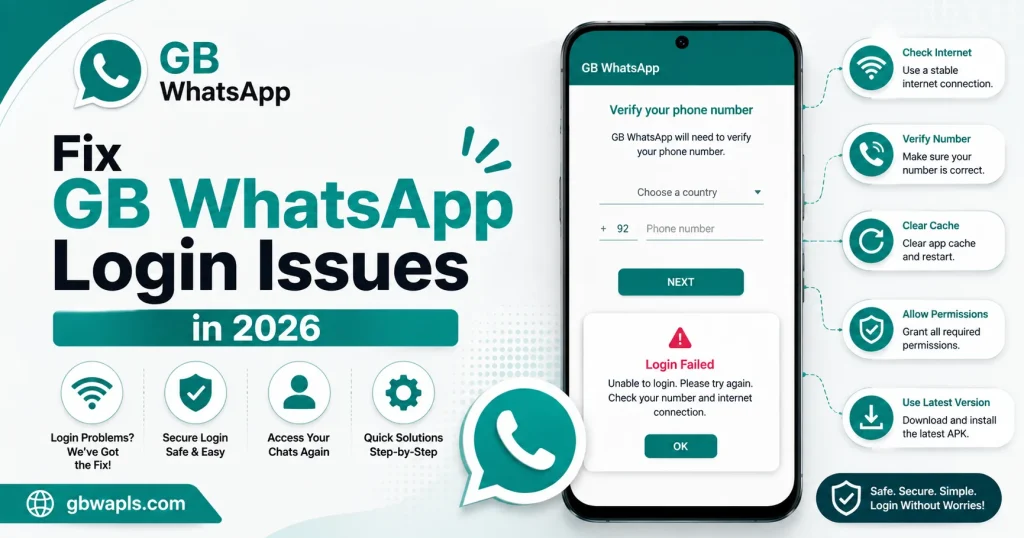
Wait at least 10 minutes for the SMS to arrive, tap the Call Me option to receive an automated voice call, switch to a stronger Wi-Fi or mobile network, restart your phone to refresh the network, make sure your number is entered with the correct country code, and contact your carrier to ensure SMS services are active.
Issue 2: Too Many Attempts Error
WhatsApp limits the number of verification attempts to prevent abuse. Wait 12 to 24 hours before trying again, uninstall and reinstall GB WhatsApp to reset the counter, avoid requesting multiple codes in a short time, and use the call verification option instead of SMS.
Issue 3: Account Banned Message
If you see a ban warning, your number has been flagged. Wait for the temporary ban to expire, switch to the latest GB WhatsApp version with strong anti-ban, avoid spam behavior when the ban lifts, use a secondary number for mod use, and appeal through official WhatsApp if the ban is permanent.
Issue 4: Two-Step Verification Forgotten
Two-step verification adds an extra PIN for security. Forgetting it locks you out. Enter the email you used to register the PIN, request a reset link from WhatsApp, wait 7 days for the PIN to expire, or re-register with a new PIN. To avoid this in the future, store your PIN in a secure password manager.
Issue 5: Internet Connection Failure
GB WhatsApp requires stable internet to verify your number. Switch between Wi-Fi and mobile data, restart your router, disable VPN and proxy temporarily, check if your carrier is blocking WhatsApp traffic, and try verifying at a different time of day.
Issue 6: Outdated Version Error
Older GB WhatsApp versions may not work with current WhatsApp servers. Download the latest GB WhatsApp APK from a trusted source, install it over the existing app, verify your number again, and keep auto-update enabled in GB Settings.
Issue 7: Corrupted Installation
A corrupted APK can cause login failures. Uninstall GB WhatsApp completely, clear residual files from internal storage, re-download the APK from a trusted source, install fresh and verify again, and restore chats from your latest backup.
Issue 8: GB WhatsApp Server Down
Sometimes the issue is on the developer side. Check the official Telegram channel for server status, wait a few hours and retry, use the latest version which connects to stable servers, and avoid using beta or experimental builds.
Quick Fix Table
| Problem | Quick Fix |
|---|---|
| No verification code | Use Call Me option |
| Too many attempts | Wait 24 hours |
| Ban message | Update to latest version |
| Forgot two-step PIN | Reset via email |
| No internet | Switch network |
| Outdated version | Download latest APK |
| Corrupted app | Reinstall fresh |
| Server down | Wait and retry |
Step-by-Step Reset Method for Persistent Issues
If the basic fixes do not work, follow this complete reset process. First, back up important data by opening GB WhatsApp settings, creating a local backup, and moving the backup to your computer or SD card. Then, uninstall GB WhatsApp by long pressing the app icon, tapping Uninstall, and confirming the action. After that, clear residual files by opening Android Settings then Storage, finding the GB WhatsApp folder, deleting all residual files, and clearing cache and data. Next, re-download the latest APK by visiting a trusted source, downloading the latest version, and verifying file integrity. Finally, install the APK, open GB WhatsApp, enter your phone number, complete verification, and restore from backup.
How to Avoid Login Issues in the Future
To avoid login issues in the future:
Best Settings for Smooth Login
| Setting | Recommended Value |
|---|---|
| Network | Stable Wi-Fi |
| GB WhatsApp Version | Latest stable |
| Two-Step Verification | Enabled with valid email |
| Auto-Update | Enabled |
| Anti-Ban Module | Enabled |
| VPN | Disabled during verification |
| Time Zone | Match your actual location |
How to Enable Two-Step Verification
Open GB WhatsApp, go to Settings then Account, tap Two-Step Verification, tap Enable, enter a 6-digit PIN, add a recovery email, and save settings. This adds a security layer and prevents unauthorized logins.
What to Do If Your Number is Permanently Banned
If your number is permanently banned, follow these steps:
Difference Between Login Issues and Ban Issues
| Aspect | Login Issue | Ban Issue |
|---|---|---|
| Cause | Technical problem | Policy violation |
| Fix Time | Minutes to hours | 24 hours to permanent |
| User Action | Troubleshooting | Wait or appeal |
| Affects Verification | Yes | Yes |
| Resolved by Update | Sometimes | No |
Tools to Help Diagnose Login Issues
Useful tools include:
Frequently Asked Questions
Final Verdict
GB WhatsApp login issues in 2026 are common but easy to fix with the right approach. Use the troubleshooting steps above, keep your version updated, and maintain a stable network for smooth logins every time.