How to Disable Google Play Protect for GB WhatsApp
Introduction
Disabling Google Play Protect for GB WhatsApp is often necessary because Google flags third-party APKs as potentially harmful. In 2026, Play Protect scans every installed app and may block or warn about GB WhatsApp even if you downloaded it from a trusted source. This guide explains what Google Play Protect is, why it interferes with GB WhatsApp, and how to safely disable it without compromising your device security.
Understanding this process helps you install and run GB WhatsApp smoothly while keeping your phone protected from real threats.
What is Google Play Protect
Google Play Protect is Android’s built-in security system. It:
It is enabled by default on all Android devices with Google Play Services.
Why Play Protect Blocks GB WhatsApp
GB WhatsApp is not on Google Play, so Play Protect treats it as an unknown app. Common triggers include app signature does not match Google database, APK installed from outside Google Play, app requests sensitive permissions, developer is not verified by Google, and code patterns resemble known mod apps. These triggers cause Play Protect to show warnings or block installation entirely.
Risks of Disabling Google Play Protect
Before disabling, understand the risks.
| Risk | Description |
|---|---|
| Reduced malware protection | Real threats may go undetected |
| No automatic app scanning | You must manually verify apps |
| Weaker phishing defense | Harmful links may not be flagged |
| No device security alerts | Suspicious behavior may go unnoticed |
To minimize these risks, only disable Play Protect temporarily and only for GB WhatsApp.
Prerequisites Before Disabling
Make sure you have done the following:
Method 1: Disable Play Protect Entirely
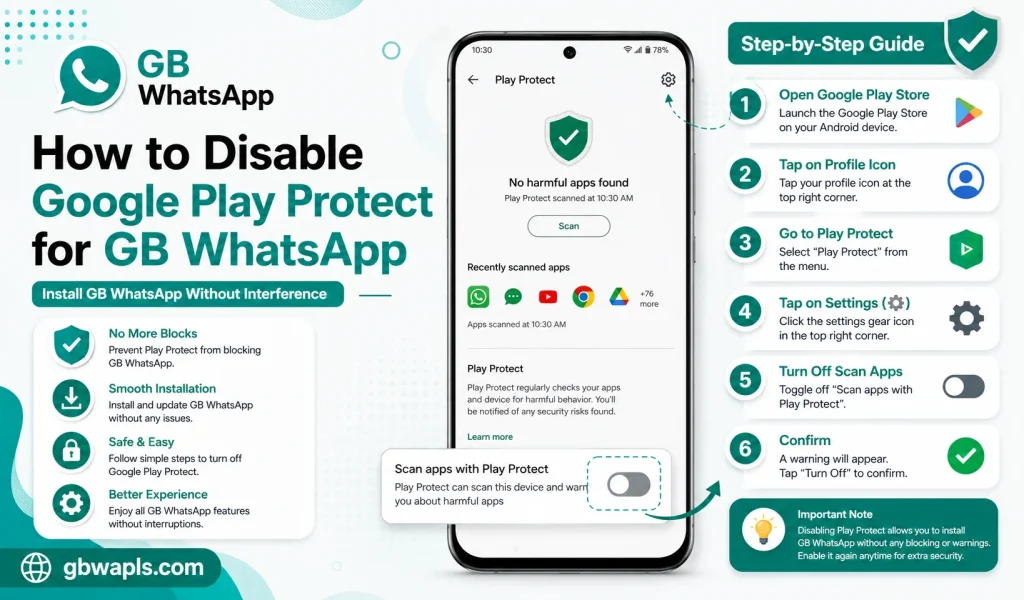
Step 1: Open Google Play Store
Launch the Google Play Store app on your Android device.
Step 2: Tap Your Profile Icon
In the top right corner, tap your profile picture to open the menu.
Step 3: Open Play Protect Settings
Select Play Protect from the menu. Then tap the gear icon to open settings.
Step 4: Toggle Off Scan Apps with Play Protect
You will see two options, Scan apps with Play Protect and Improve harmful app detection. Toggle both off to disable Play Protect scanning.
Step 5: Confirm the Change
A warning will appear explaining the risks. Tap Turn Off or OK to confirm.
Step 6: Install GB WhatsApp
Open your file manager, locate the GB WhatsApp APK, and install it without interruption.
Method 2: Allow Installation from Unknown Sources
Instead of disabling Play Protect entirely, you can allow GB WhatsApp specifically.
Step 1: Open Android Settings
Go to Settings, then Apps, then Special Access, then Install Unknown Apps.
Step 2: Select the Browser or File Manager
Choose the app you used to download the GB WhatsApp APK.
Step 3: Enable Allow from This Source
Toggle the permission on. This allows installation of APKs from that specific app without disabling Play Protect globally. Open the APK and complete the installation.
Comparison of Both Methods
| Aspect | Disable Play Protect | Allow Unknown Source |
|---|---|---|
| Scope | Global | Per app |
| Security Impact | Higher | Lower |
| Ease of Use | Easy | Easy |
| Recommended Duration | Temporary | Permanent for trusted apps |
| Re-enable | Manual | Manual |
Allowing unknown sources per app is safer than disabling Play Protect entirely.
How to Re-Enable Google Play Protect
After installing GB WhatsApp, restore protection. Open Google Play Store, tap your profile icon, go to Play Protect, toggle Scan Apps with Play Protect back on, and toggle Improve Harmful App Detection back on. Re-enable these as soon as the installation is complete.
How to Whitelist GB WhatsApp in Play Protect
Some Android versions allow you to whitelist specific apps. Open Play Protect settings, tap the menu and look for Whitelist or Allowed Apps, add GB WhatsApp to the list, and save changes. This option is not available on all devices but is the safest approach.
Common Warnings and How to Handle Them
| Warning | Meaning | Action |
|---|---|---|
| This app may be harmful | Play Protect flagged the APK | Confirm you trust the source and proceed |
| App blocked by Play Protect | Installation prevented | Disable Play Protect temporarily |
| Unknown developer | App not from Google Play | Expected for GB WhatsApp |
| App not scanned | Scan skipped | Manually scan with antivirus |
| Suspicious behavior | App accessed sensitive data | Review permissions before allowing |
How to Manually Scan GB WhatsApp for Safety
Before installing, scan the APK using a reputable antivirus app, upload it to an online scanner, check the file hash against the developer’s published hash, and compare file size with the official size.
Best Practices After Disabling Play Protect
How to Keep GB WhatsApp Safe Without Play Protect
| Safety Measure | Description |
|---|---|
| Antivirus app | Run regular scans |
| App locker | Lock GB WhatsApp with PIN or fingerprint |
| Two-step verification | Add extra security to your account |
| VPN | Encrypt internet traffic |
| Chat backup | Keep regular backups in cloud and local |
| Permission review | Revoke unnecessary permissions |
How to Update GB WhatsApp Without Play Protect Interference
Download the new APK from the same trusted source, tap Install over the existing app, allow unknown source permission if prompted, complete the update, and re-enable Play Protect if you disabled it.
Device-Specific Instructions
Samsung Devices
Open Galaxy Store then Menu then Settings, disable Auto Update if it conflicts with manual APK installs, and use the same Play Protect steps.
Xiaomi Devices
Open Security app then Settings, disable Play Protect scan if available, and use the same Google Play Protect steps.
OnePlus Devices
Use the standard Play Protect settings and allow unknown source per app in OxygenOS settings.
Frequently Asked Questions
Final Verdict
Disabling Google Play Protect for GB WhatsApp in 2026 is sometimes necessary for a smooth installation. Use the per-app unknown source method when possible, disable Play Protect only briefly, and re-enable protection immediately.